
ZimpleMoney is a subscription-based software solution for loan management and automated payments online. Subscription fees help cover hosting, software development, uptime, and security infrastructure.
ZimpleMoney Pricing Overview
Understand ZimpleMoney's free trial period, subscription costs, and what's included at each plan level.
Free trial: New members who have selected a subscription plan receive 1 month at no charge.
After the trial:
-
A minimum subscription of $23/month covers up to 3 loan contracts
-
Additional plans are available depending on loan volume and features needed
View the full current pricing schedule on our website here: ZimpleMoney Plans Pricing.
Managing Your Subscription
The Account tab is where you can manage or change your ZimpleMoney subscription, including upgrades, downgrades, billing changes, and cancellations.
- Go to Account > Subscription.
- From here, you can:
- Upgrade or downgrade your plan
- Change your billing credit card
- Cancel your subscription
You can make changes to your subscription at any time from this page.
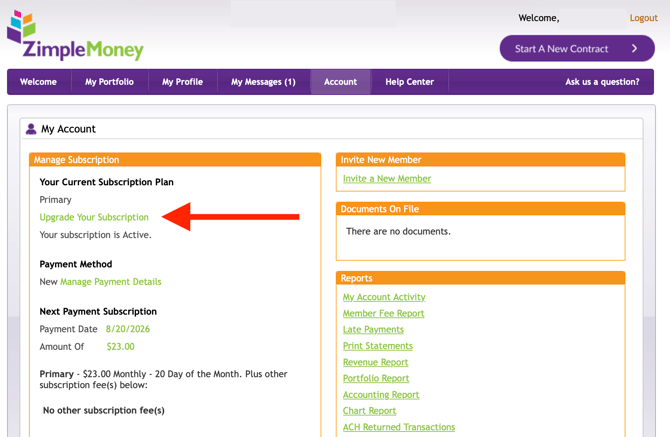
To add a new payment method for your Subscription Plan, follow these steps:
-
Use the dropdown arrow and select NEW.
-
Enter your new bank account information. If you have not completed identity verification prior to this step, you will be prompted to do so.
-
Use the dropdown again to confirm the correct account is selected.
-
Click Update.
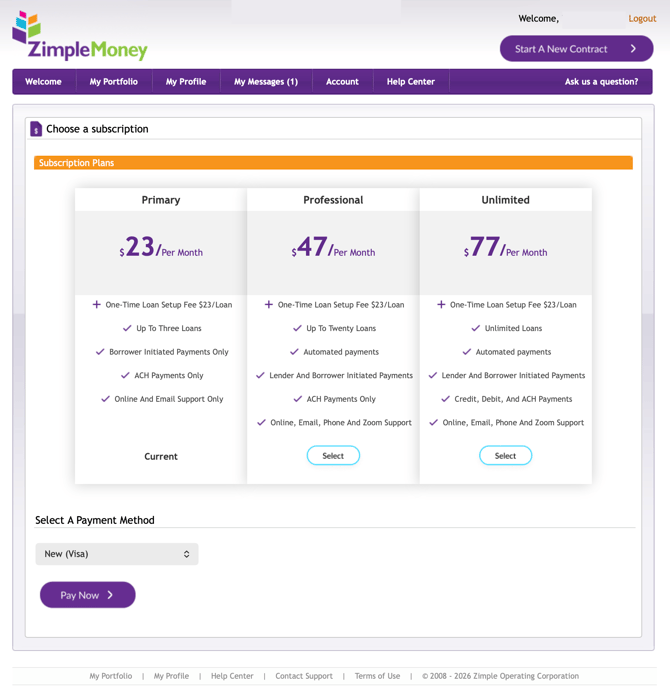
An active, paid subscription is required as long as you have active loans on the platform.
To change the account used to pay your ZimpleMoney subscription:
Steps:
- Select the Account tab.
- On the left side of the page, locate the Subscription box.
- Click Manage Payment Details.
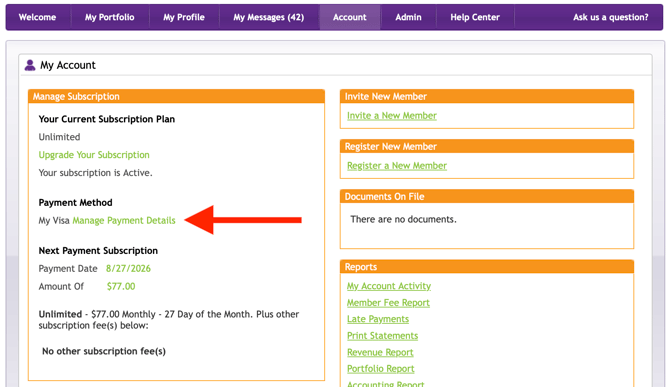
4. You will see the existing payment method shown in the dropdown menu.
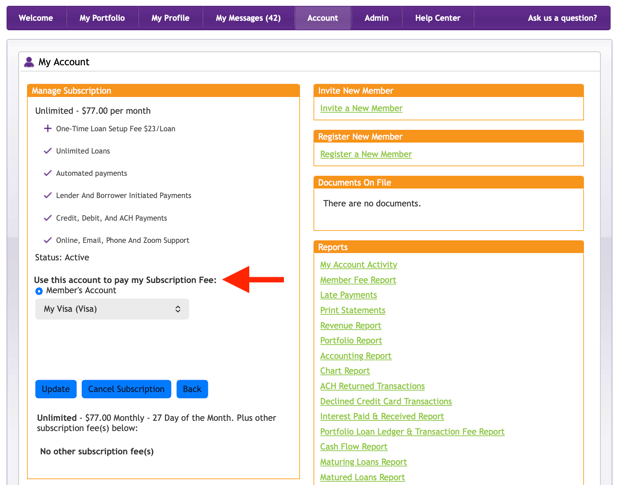
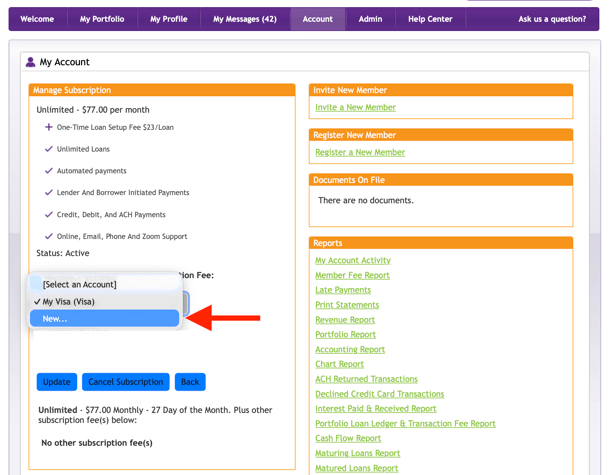
5. Click the dropdown arrow and select NEW. Enter your new account then click Verify Card.
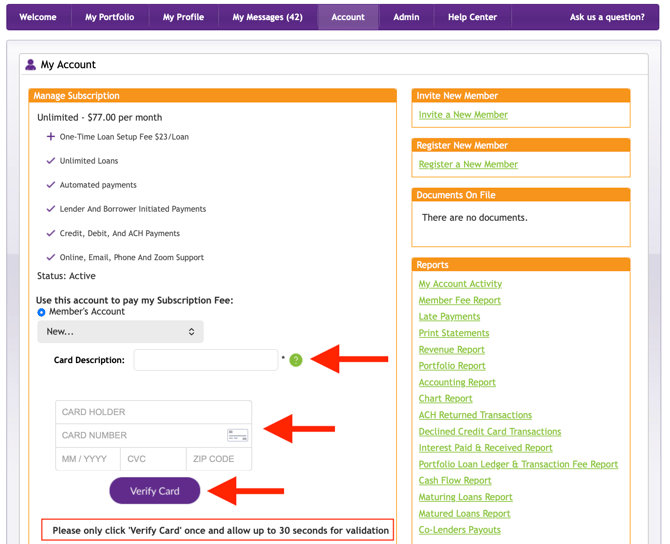
6. After the card has been added, look at the dropdown menu to be sure the correct account is selected, then click Update.